

Most kids fitness apps assume you have an hour. You don't. You have the window between snack time and meltdown.
Here's how to get a 3-year-old (or a 7-year-old) through their first BabyGains Play routine in under five minutes of setup. I'll walk through every screen, what to tap, and what to expect.
Step 1 — Download and open the app
BabyGains Play is on the App Store and Google Play. Free to download. The opening screen looks like this:
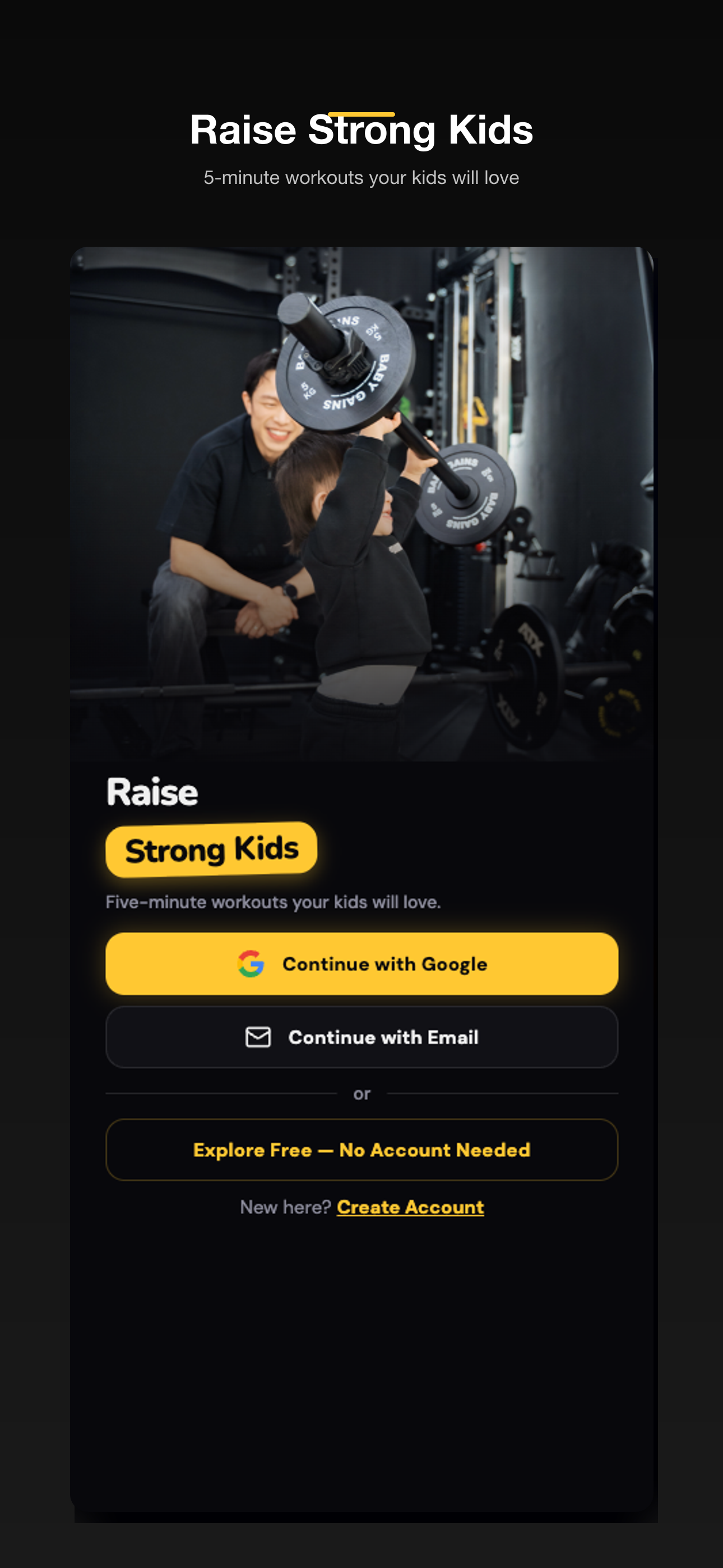
No account required to look around. If you want to save progress, badges, and routines across devices, you create a parent account — email + password. That takes thirty seconds. Skip it on the first run if you want; you can add it later from settings.
Step 2 — Pick your kid's age band
This is the most important step, and the one most parents instinctively get wrong. The app has three bands:
- Strong Start (2-4) — short bursts, lots of mimicry, no equipment required
- Power Up (4-6) — full routines, light equipment optional, real movement names
- Big Movers (6-8) — programmed sessions, equipment integrated, badges harder to earn
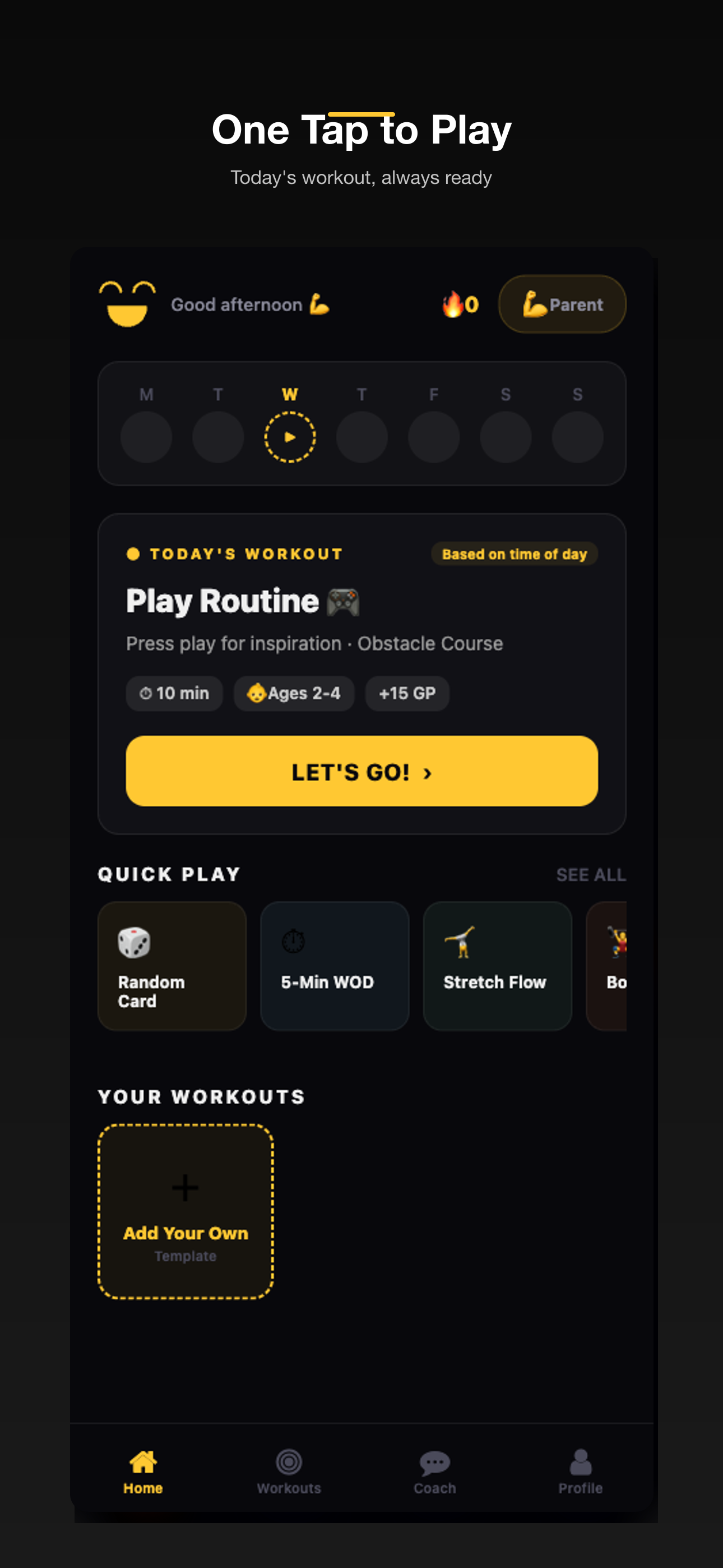
Pick down, not up. A 4-year-old in the Strong Start band has a great time. A 4-year-old in Power Up gets frustrated by the third movement. You can move up a band any time — the app remembers. But the first session should feel easy.
If you have two kids in the same household, you create two profiles. Each gets their own streak, their own badges, their own routine history. Switching between them is one tap.
Step 3 — Browse routines
Inside an age band you'll see routines organized by intent: Wake Up, After-School, Strength Day, Rainy Day Energy Burn. Each card shows the duration, equipment needed, and a one-line description.
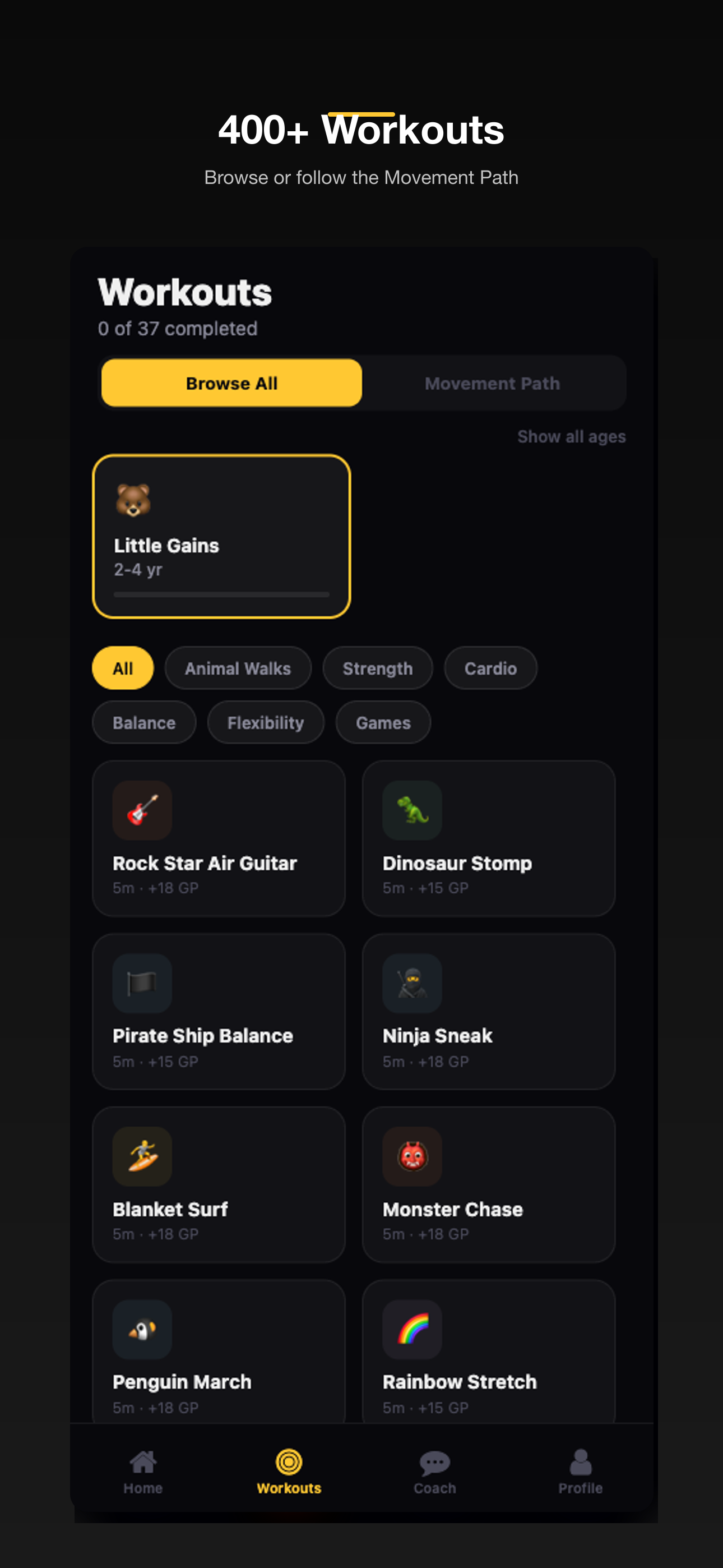
Pick the shortest one for the first session. There's a 4-minute "First Workout" specifically labeled that way in every band. It runs through five movements at a kid's pace. By minute two your kid will tell you what's coming next. That's the point — repetition is the feature, not a bug.
Step 4 — Run the routine
Tap Start. The screen shifts into routine mode:
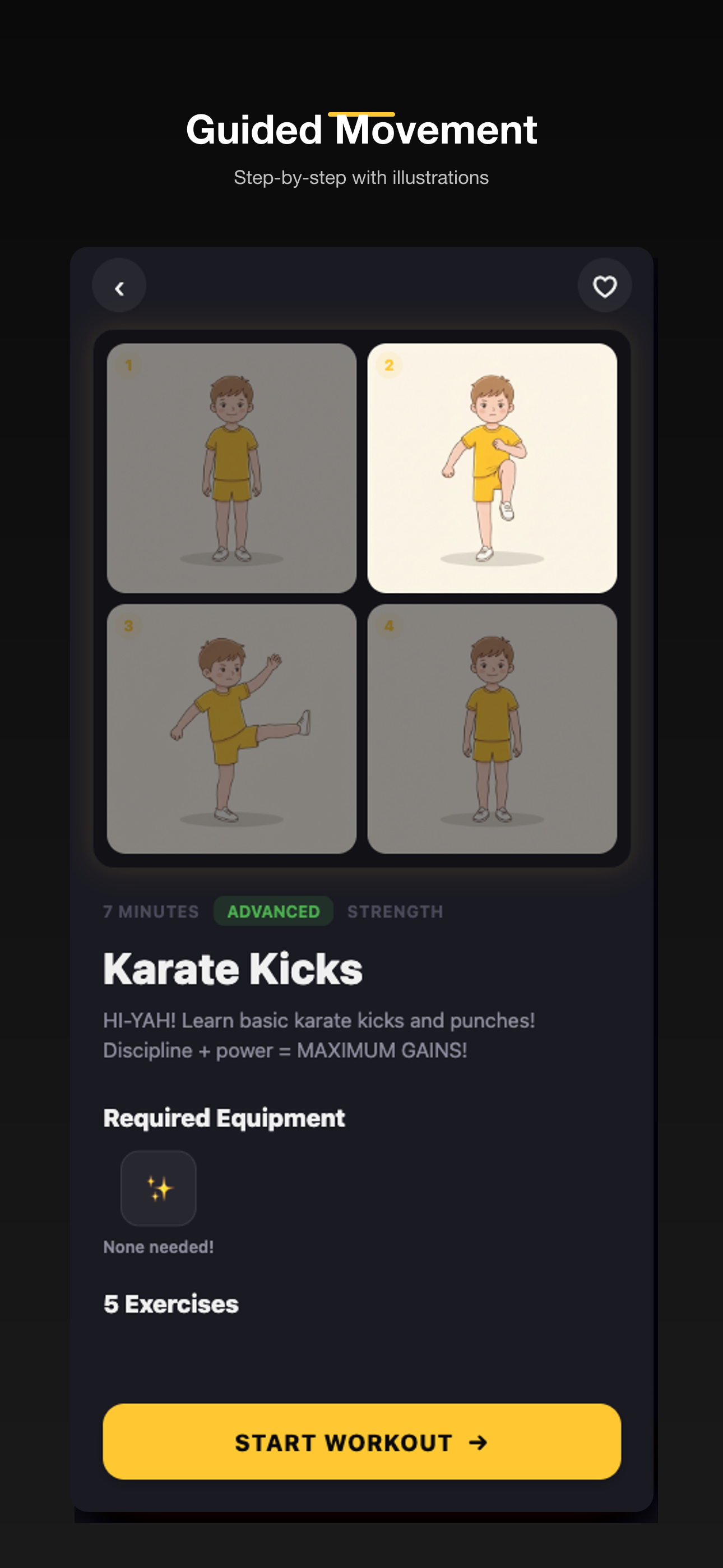
What you'll see on screen:
- The exercise illustrated — four panels showing the movement from start to finish
- A timer — counts down for time-based moves, counts up for rep-based ones
- The exercise name — narrated by a calm parent voice, not a kid-show host
- Pause / skip / repeat — always available, no penalty
What you should do as the parent:
- Put your phone down where your kid can see the screen. Not in your hand. They follow the screen, not you.
- Do the first rep with them. Even if you feel ridiculous. Especially if you feel ridiculous. The first rep is the demo.
- Don't correct form. Not on routine one. Let them figure out their body. Form coaching at age 3 turns play into a chore.
- Cheer when the timer hits zero. That's it. No notes, no replays. Move to the next.
A first routine of 5 movements takes 4-7 minutes depending on how much your kid wants to repeat the favorite one (and they will).
Step 5 — Badges and parent dashboard
Finishing a routine triggers a badge animation. The first one is the "First Workout" badge — a yellow check mark with a small fanfare. That badge is the hook. Kids ask to do another routine specifically to earn the next badge, which is a real psychological thing and the reason every kids app from Duolingo to Khan Academy uses streaks.
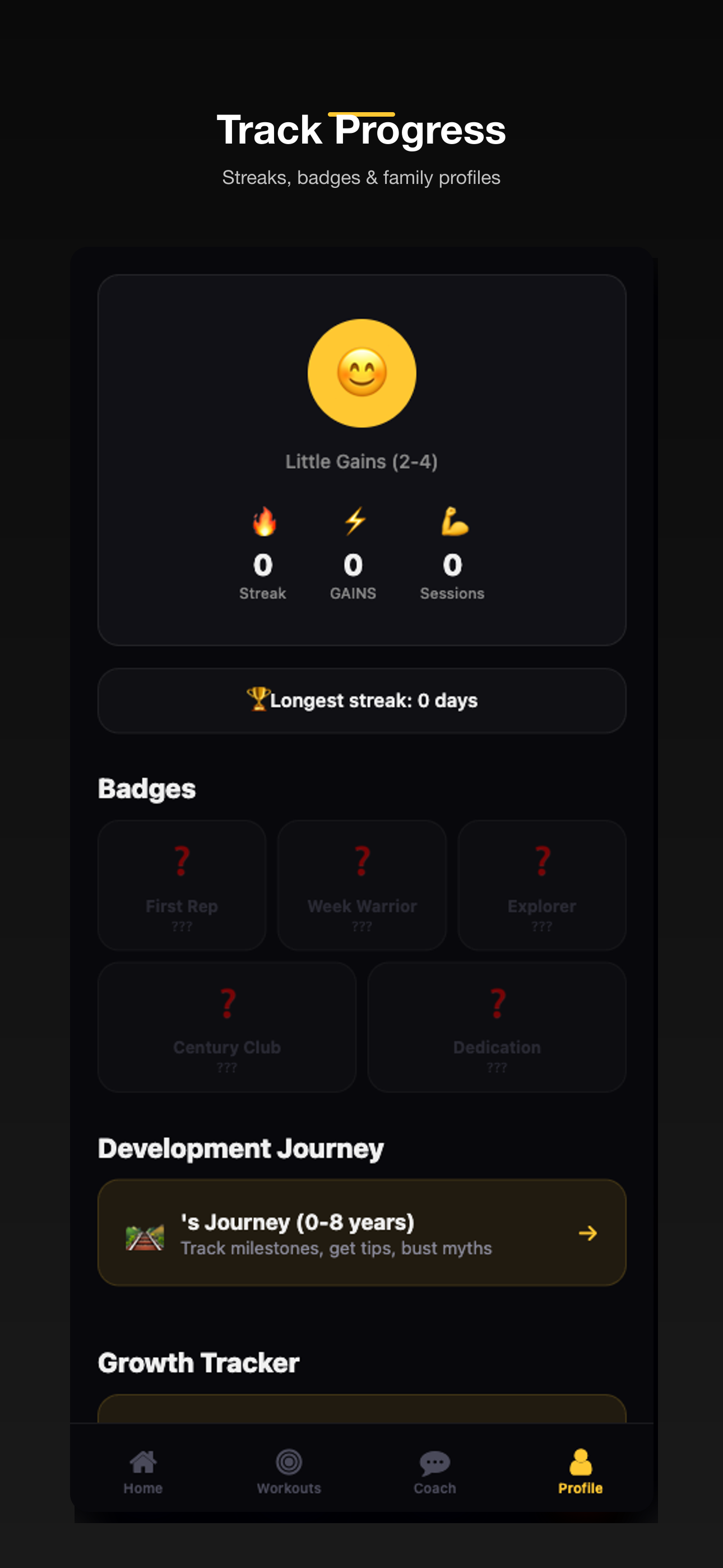
The parent profile (tap the avatar top-right) shows:
- Streak — consecutive days with at least one routine
- Total minutes moved — across all sessions
- Badges earned — and which ones are next
- Routine history — every workout your kid has finished, with timestamps
I check this once a week, usually Sunday night. It tells me whether the after-school routine I set up is actually getting used or whether we need a different time slot.
What to do after the first routine
If your kid asks for another one — run it. Don't end on a high note artificially. Two routines in a row is fine. Three is rare.
If your kid loses interest mid-routine — end it. Pause, ask if they want to keep going, and if they say no, mark it done and move on. The timer rewards finishing, but the app doesn't punish stopping.
If your kid runs every routine in the age band — move up. You're allowed.
Pairing it with gear
The first week is bodyweight-friendly. After that, having one piece of physical gear changes everything. The most-used setups from early users:
- One Kids Curl Bar — ages 3-6. Fits in any room. Most of the "press" and "row" movements light up.
- One Starter Kettlebell Set — two sizes, swing-friendly, the favorite for the 4-6 band.
- The Complete Rack & Bell Bundle — if you want to skip the "what should I buy next" question entirely.
I wrote up the room-setup side of this in the Gym Playbook — that covers floor, layout, and parent-kid corner integration. It's the companion document to the app.
A few parent-only tricks
- The "two routines per week" minimum. If your kid does at least two, they keep the streak. Don't aim for daily. Aim for sticky.
- Same time slot. After school. After dinner. Saturday morning. Pick one and protect it.
- Run a routine yourself. The Big Movers band is too easy for an adult, but a 7-year-old loves nothing more than out-pacing Dad. Be the rabbit.
- Don't gamify it past what the app does. No stickers, no extra rewards. The badges are enough. Adding more turns it into bribery and ruins the intrinsic motivation.
That's the whole loop. Five minutes of setup, a four-minute routine, a badge, and a streak that starts building immediately.
If your kid is between routines and you want a longer-form read, the 5 AM Dad Shift is the one I wrote about how training time is the most important hour of my day. The kids version of that hour is what this app is for.
Download BabyGains Play and run your first routine tonight.